Usage
The calculator offers three input fields.
Equations
Assumptions
Looking for
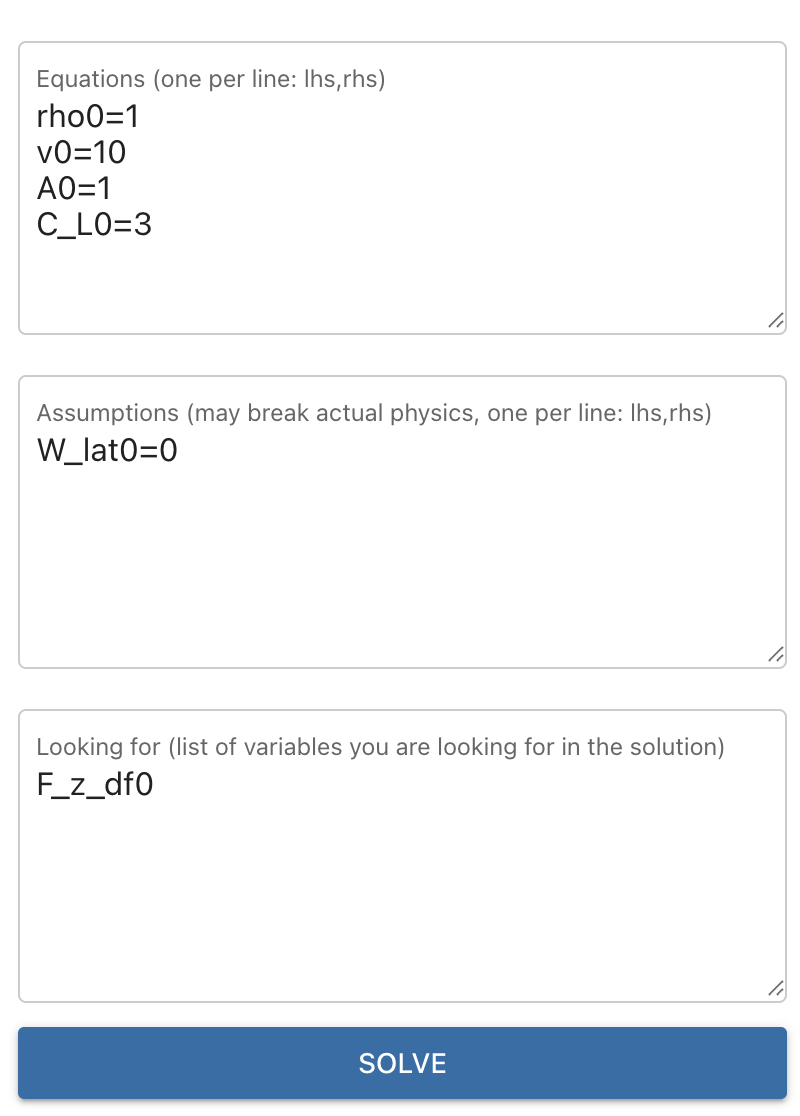
Each field accepts one input per line. After entering your inputs, click Solve to run the symbolic solver. An example input is shown in the figure below.
Conceptual Overview
Everything Aero does not follow a fixed calculation order.
Instead, it:
Collects all known symbols and equations
Automatically activates all solvable equation templates
Solves the resulting system symbolically
Relaxes assumptions if the system is over-constrained
You only need to provide enough information - not a specific workflow.
Indexed Variables
All symbols must be indexed.
Examples:
v0
rho0
F_z_total1
Each index represents a separate operating point.
Typical use cases:
\(v_0\), \(v_1\): two different speeds
\(\rho_0\), \(\rho_1\): different atmospheric conditions
\(F_{z0}\), \(F_{z1}\): before / after a setup change
If your problem involves only one condition, simply use index 0 everywhere.
If any symbol is missing an index, the solver will not run.
Input Fields
Equations
This field is used for:
Known numerical values (e.g.
v0 = 30)Known relationships from the problem statement
Custom equations not already built into the solver
Examples:
v0 = 30
rho0 = 1.225
Re0 = Re1
All equations entered here are treated as hard constraints. If the system is inconsistent, no solution will be found.
Assumptions
Assumptions are soft constraints that may override physics. This field is optional.
Example:
W_lat0 = 0
If assumptions conflict with physical equations, the solver will:
Try to preserve equations related to variables in Looking for
Relax assumption equations if necessary
This mirrors how assumptions are treated in real engineering problems.
Looking for
This field is optional but strongly recommended.
It serves two purposes:
Highlights variables in the LaTeX solution output
Tells the solver which equations to prioritize when resolving conflicts
Example:
F_z_total_cornering_fl
F_z_total_cornering_fr
Solve
Once inputs are entered, click Solve.
Scalar-only problems solve instantly
Symbolic functions may take a few seconds
If no solution is found, check indexing first
Custom Equations
You can add custom equations directly in the Equations field. New symbols are allowed.
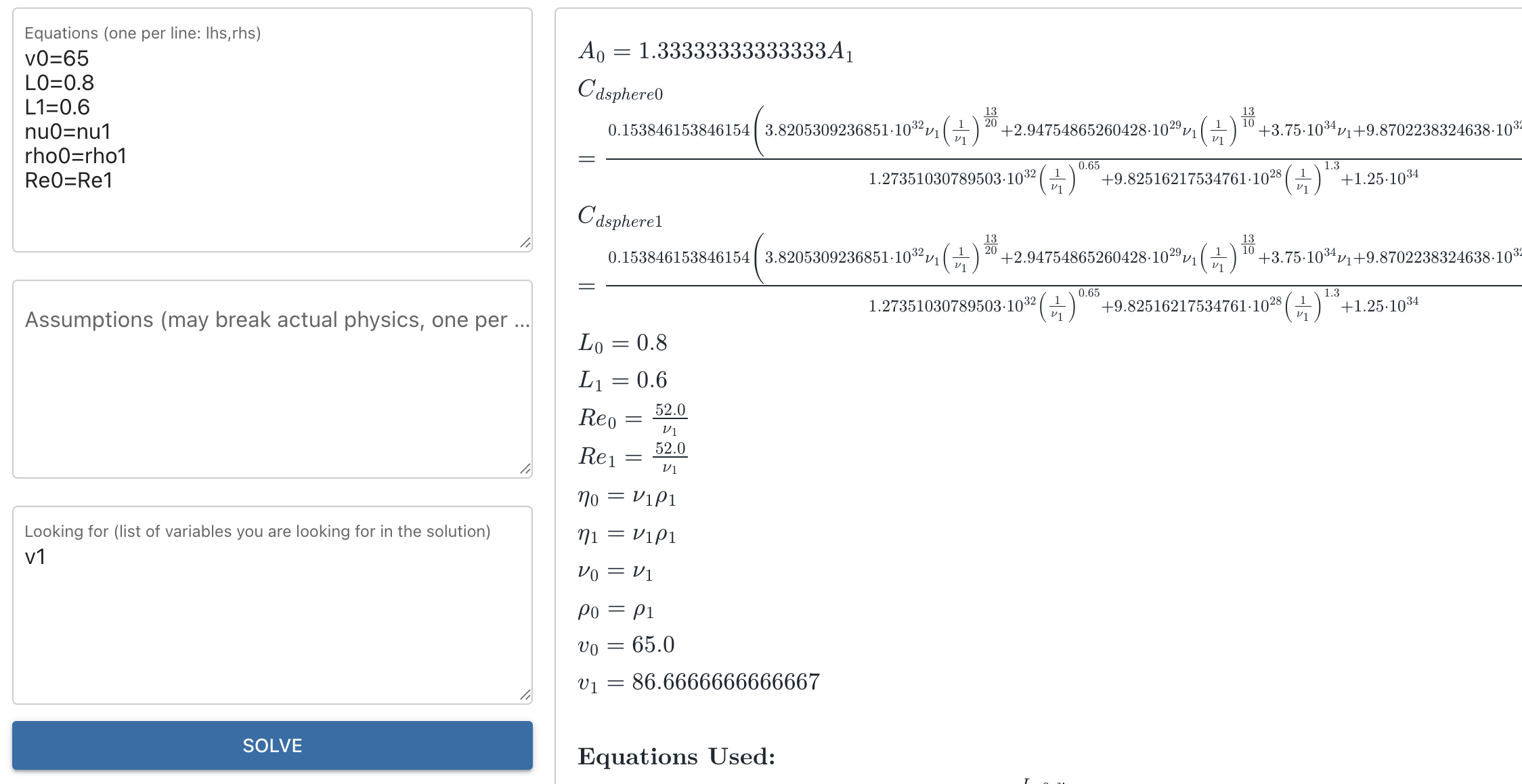
The example below solves FS-Quiz Question 366
and correctly finds \(v_1 = 86.6666\).
Custom equations used:
Re0 = Re1
nu0 = nu1
rho0 = rho1
Troubleshooting:
If nothing happens after pressing Solve, the most likely cause is that not every symbol has an index currectly appended to it. If this is the case, add the correct index and solve again.