Build a multi-switch useless box with a single moving arm, custom PCB, and 3D-printed mounting — full Arduino code and STL files included.
blog.hirnschall.net


The ESP32 Arduino core includes the Preferences library as the recommended way to store data persistently across reboots and power loss. It replaces the EEPROM library, which on the ESP8266 required manual address management and explicit commit calls. If you are coming from the ESP8266, the ESP8266 EEPROM article covers that approach. This post focuses entirely on the Preferences library and how to use it effectively on the ESP32.
This post is part of a complete ESP32 reference you can find here.
Preferences stores data in a dedicated region of the ESP32's flash memory called NVS (Non-Volatile Storage). NVS is a separate flash partition. It is not the same region used for program code or SPIFFS/LittleFS. Its location and size are defined in the partition table.
Unlike EEPROM emulation on the ESP8266, which maps a fixed block of flash directly to a RAM buffer, NVS uses a key-value store with built-in wear leveling. Flash memory has a limited number of write cycles per sector. Wear leveling distributes writes across multiple sectors so that no single sector is written repeatedly. This makes NVS significantly more suitable for data that changes frequently, such as counters or frequently updated settings.
NVS also handles power loss more gracefully. A write operation that is interrupted by a reset or power failure will not corrupt existing data. The partially written entry is discarded and the previous value is retained.
Data in NVS is organized into namespaces. A namespace is a named container that holds a set of key-value pairs. Think of it as a named section in a configuration file. Multiple namespaces can coexist in NVS without conflict, even if they use the same key names.
Namespace and key names are case sensitive strings with a maximum length of 15 characters [3]. This limit is important. Silently truncating a 16-character name will cause the wrong key to be read or written without error. We have to keep names short and unambiguous.
Only one namespace can be open at a time. Opening a second namespace requires closing the first with end().
The Preferences library offers put and get functions to store and retrieve data from Flash. These functions are different per type and data size we want to store. The following are available [1]:
put | get | has unsigned version | C++ type |
|---|---|---|---|
| putChar | getChar | ● | int8_t/uint8_t |
| putShort | getShort | ● | int16_t/uint16_t |
| putInt | getInt | ● | int32_t/uint32_t |
| putLong | getLong | ● | int32_t/uint32_t |
| putLong64 | getLong64 | ● | int64_t/uint64_t |
| putFloat | getFloat | ○ | float_t |
| putDouble | getDouble | ○ | double_t |
| putBool | getBool | ○ | bool |
| putString | getString | ○ | const char * |
| putBytes | getBytes | ○ | const void * |
Functions for default types offer unsigned versions where it makes sense. If we want to store an int we'd use putInt. To store an unsigned int we'd use putUInt. So, if the function is putX, the unsigned version is available as putUX. Same goes for the get functions.
Before we dive into full usage examples, let's look at the function signatures for both put and get.
With the exception of string and byte, which we will go into later, the syntax for all putX functions is similar. We will use putChar as an example:
size_t putChar(const char *key, int8_t value)The first argument is the key name, and the second is the value to store.The return value is 0 on errors and 1 otherwise.
Similarly, the syntax for getX functions is also the same across all types (except for string and byte). Again, we will use getChar as an example:
int8_t getChar(const char *key, int8_t defaultValue = 0)The first argument is the key name, and the second is the default value to return if the key does not exist. The return value is the stored value or the default if not found.
As the Preferences library is included in the ESP32 Arduino core, we do not need to install anything besides the ESP32 core from the Boards Manager. Once installed, we incldue the header and create a Preferences object as shown below.
#include <Preferences.h>
Preferences prefs;
To open a namespace we use begin(), specifying the namespace name and whether to open it in read-only mode. Passing true as the second argument opens the namespace read-only, which prevents accidental writes and is something we will do when we do not want to write data. The example below uses the namespace called "settings".
prefs.begin("settings", false); // open read-write
prefs.begin("settings", true);  // open read-only
We write a value using the appropriate putX() method, passing the key name and the value.
prefs.putInt("counter", 42);
prefs.putFloat("threshold", 23.5);
prefs.putBool("enabled", true);
We read a value using the corresponding getX() method, passing the key name and a default value. The default is returned if the key does not yet exist in NVS. We can use this feature on e.g. first boot before any value has been written.
int counter   = prefs.getInt("counter", 0);
float threshold = prefs.getFloat("threshold", 20.0);
bool enabled  = prefs.getBool("enabled", false);
We close the namespace with end() when done. This releases the handle and allows another namespace to be opened.
prefs.end();
The second argument to any getX() call is the default value returned when the key does not exist. This is the cleanest way to handle first boot as we do not need any special initialization code.
int count = prefs.getInt("count", 0); // returns 0 on first boot
If we want to explicitly check whether a key exists before reading, we use isKey().
if (prefs.isKey("count")) {
    // key exists, safe to read
    int count = prefs.getInt("count", 0);
} else {
    // first boot, key not yet written
}
In most cases the default value in getX() is sufficient and isKey() is not needed. It is most useful when the distinction between a missing key and a key set to zero matters for the application.
There are two main ways to delete data from NVS. We can remove either a single key-value pair or all key-value pairs in the current namespace. Both options require the namespace to be open in read-write mode. Neither affects other namespaces.
We can delete a single key-value pair with remove().
prefs.remove("counter");
If we want to delete all key-value pairs in the current namespace, we can call clear() as shown below. This is useful for resetting all settings to defaults on e.g. a factory reset operation.
prefs.clear();
Strings are stored and retrieved using putString() and getString(). Again, the first argument is the key and the second argument is the value. Both char arrays and Arduino Strings can be used as values. When reading with a default value, the return value is an Arduino String. Alternatively, a char array can be passed as the second argument to getString(), in which case the value is copied into the provided buffer. We will stick to the Arduino String approach in the example below for simplicity.
prefs.putString("ssid", "MyWiFi");
prefs.putString("password", "MyPassword");

String ssid     = prefs.getString("ssid", "");
String password = prefs.getString("password", "");
For storing arbitrary binary data or a complete struct, we can use putBytes() and getBytes(). This is equivalent to the EEPROM.put() and EEPROM.get() approach from the ESP8266. We pass a pointer to the data and its size in bytes. The example below shows how we can store wifi credentials and application settings together in a struct. This way we can read and write everything in a single call without needing to manage multiple keys.
struct Settings {
    char ssid[32];
    char password[64];
    float threshold;
    bool enabled;
};

Settings settings = {"MyWiFi", "MyPassword", 23.5, true}; //example data

// write
prefs.putBytes("cfg", &settings, sizeof(settings));

// read
prefs.getBytes("cfg", &settings, sizeof(settings));
Using sizeof() ensures the correct number of bytes is always written and read regardless of the struct layout or field sizes. This is probably the most convenient approach when storing multiple related values that belong together.
Both String and Byte offers a way to check the size of a stored value before reading. We can do so using getBytesLength() and getStringLength(). This is useful to verify that the stored size matches the current struct size. E.g. after a firmware update that adds fields to the struct. Below we check if the struckt size has changed since the last write. If it has, we can assume the layout is different and use defaults instead of reading incompatible data.
size_t storedSize = prefs.getBytesLength("cfg");
if (storedSize == sizeof(settings)) {
    prefs.getBytes("cfg", &settings, sizeof(settings));
} else {
    // struct layout has changed, use defaults
}
Namespaces are useful for separating different parts of an application. For example, network credentials can live in one namespace and application settings in another. Since only one namespace can be open at a time, we open, use, and close each one in sequence. The main reason to use multiple namespaces is to allow for keys with the same name to exist without conflict. For example, we could have a version key in both the network and app namespaces without any issues.
prefs.begin("network", false);
prefs.putString("ssid", "MyWiFi");
prefs.putString("password", "MyPassword");
prefs.end();

prefs.begin("app", false);
prefs.putFloat("threshold", 23.5);
prefs.putBool("enabled", true);
prefs.end();
The following example stores WiFi credentials and application settings using a struct. On first boot the defaults are used and written to NVS. On subsequent boots the stored values are read back.
#include <Preferences.h>
#include <WiFi.h>

Preferences prefs;

struct Settings {
    char ssid[32];
    char password[64];
    float threshold;
    bool enabled;
};

Settings settings;

void loadSettings() {
    prefs.begin("cfg", true); // read-only

    if (prefs.getBytesLength("settings") == sizeof(settings)) {
        prefs.getBytes("settings", &settings, sizeof(settings));
        Serial.println("Settings loaded from NVS");
    } else {
        // first boot or struct size changed — use defaults
        strncpy(settings.ssid,     "MyWiFi",    sizeof(settings.ssid));
        strncpy(settings.password, "MyPassword", sizeof(settings.password));
        settings.threshold = 23.5;
        settings.enabled   = true;
        Serial.println("Using default settings");
    }

    prefs.end();
}

void saveSettings() {
    prefs.begin("cfg", false); // read-write
    prefs.putBytes("settings", &settings, sizeof(settings));
    prefs.end();
    Serial.println("Settings saved to NVS");
}

void setup() {
    Serial.begin(115200);

    loadSettings();

    WiFi.begin(settings.ssid, settings.password);
    while (WiFi.status() != WL_CONNECTED) {
        delay(500);
        Serial.print(".");
    }
    Serial.println();
    Serial.print("Connected. IP: ");
    Serial.println(WiFi.localIP());

    // modify and save a setting
    settings.threshold = 25.0;
    saveSettings();
}

void loop() {
}
If you are moving existing ESP8266 EEPROM code to the ESP32, the main differences are as follows. On the ESP8266 we call EEPROM.begin(size) and manage addresses manually, writing and reading bytes at specific offsets. On the ESP32 with Preferences, addresses do not exist. They are replaced by keys. There is no commit() call because each putX() writes directly to NVS. There is no fixed size to declare upfront.
The struct approach using putBytes() and getBytes() maps most directly to the EEPROM.put() and EEPROM.get() pattern. If your ESP8266 code stores a struct at address zero, the equivalent on the ESP32 is putBytes("cfg", &myStruct, sizeof(myStruct)). The rest of the application code that reads from and writes to the struct is unchanged.
The EEPROM library is still available on the ESP32 for compatibility, but new projects should probably use Preferences.
Below are links1 to the ESP modules and development boards I personally tend to use. If you are unsure about which one to choose, check out this comparison post!
| ESP-12F | NodeMCU ESP8266 | ESP32-WROOM-32 | ESP32-S3 |
|---|---|---|---|
| amazon.com amazon.de |
amazon.com amazon.de |
amazon.com amazon.de |
amazon.com amazon.de |
| #CommissionsEarned | |||
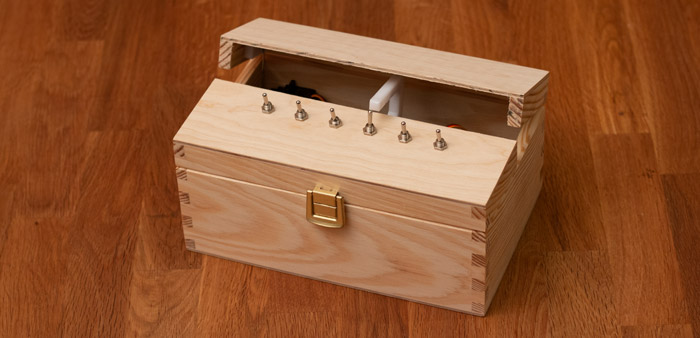
Build a multi-switch useless box with a single moving arm, custom PCB, and 3D-printed mounting — full Arduino code and STL files included.

Build a WiFi-controlled DSLR camera slider for under $100 with 3D-printed parts — full BOM, wiring, and control code included.

This project (with exceptions) is published under the CC Attribution-ShareAlike 4.0 International License.
1: As an Amazon Associate I earn from qualifying purchases.