Build a multi-switch useless box with a single moving arm, custom PCB, and 3D-printed mounting — full Arduino code and STL files included.
blog.hirnschall.net


This post covers making HTTP requests from an ESP32 using the HTTPClient.h library that is included in the Arduino core for ESP32. We will go through GET requests, POST requests with both form-encoded and JSON bodies, response code handling, and how to reuse connections efficiently. At the end there is a practical usage example sending data to an InfluxDB instance.
This post is part of a complete ESP32 reference you can find here.
The library used is HTTPClient.h from the Espressif Arduino core. No additional installation is needed as it is included in the ESP32 board package for the Arduino IDE. For JSON serialisation and deserialisation we use ArduinoJson, which can be installed in the Arduino Library Manager.
A GET request fetches a resource from a server. The server address and any parameters are encoded in the URL and there is no request body. We can use GET for e.g. reading sensor data from an API, polling a webhook, or fetching configuration values from a backend.
The following functions cover everything needed for a GET request. All of them are called on an HTTPClient object after a successful begin().
bool begin(String url)int GET()String getString(void)NetworkClient &getStream(void)void addHeader(const String &name, const String &value)void setTimeout(uint16_t timeout)void setReuse(bool reuse)static String errorToString(int error)void end()Query parameters are appended directly to the URL string before passing it to begin(). The first argument is separated from the URL by a "?". Every parameter after that is separated by "&". Let's take a look at an example URL with multiple parameters. We will send two parameters, "location" as "living_room" and "unit" as "celsius". This results in the following URL:
String url = "http://api.example.com/temperature?location=living_room&unit=celsius";
http.begin(url);
If any parameter value contains characters outside the unreserved set (letters, digits, -, _, ., ~), they need to be percent-encoded. E.g. spaces become %20, & inside a value becomes %26, and so on. The library does not encode parameter values automatically.
The return value of GET() is either a standard HTTP status code or a negative library-level error. A positive value means the server responded; the request may have still failed at the application level (e.g. 404), but the transport worked. A negative value means the library could not complete the request at all.
| HTTPC_ERROR_* | Code | Meaning |
|---|---|---|
| CONNECTION_REFUSED | -1 | Server is unreachable or actively refused the connection. |
| SEND_HEADER_FAILED | -2 | TCP connection was established but the header could not be written. |
| SEND_PAYLOAD_FAILED | -3 | Header was sent but the payload write failed. |
| NOT_CONNECTED | -4 | begin() was never called, or was called on an already-active connection. |
| CONNECTION_LOST | -5 | Connection dropped during transfer. |
| NO_STREAM | -6 | Response body stream is unavailable. |
| HTTP_SERVER | -7 | TCP connection succeeded but the server did not respond with HTTP. |
| LESS_RAM | -8 | Not enough heap to complete the request. |
HTTPClient::errorToString(httpCode) converts any of these into a readable string for serial output.
The example below connects to Wi-Fi, then polls a public JSON placeholder API once every ten seconds. We guard the request behind a WiFi.status() check. Sending a request while the connection is down returns HTTPC_ERROR_CONNECTION_REFUSED and wastes time waiting for the timeout to expire.
#include <WiFi.h>
#include <HTTPClient.h>

const char* ssid     = "your-ssid";
const char* password = "your-password";

void setup() {
  Serial.begin(115200);
  WiFi.begin(ssid, password);
  while (WiFi.status() != WL_CONNECTED) {
    delay(500);
    Serial.print(".");
  }
  Serial.println("\nConnected");
}

void loop() {
  if (WiFi.status() == WL_CONNECTED) {
    HTTPClient http;
    http.begin("http://jsonplaceholder.typicode.com/posts/1");

    int httpCode = http.GET();

    if (httpCode > 0) {
      Serial.printf("HTTP %d\n", httpCode);
      if (httpCode == HTTP_CODE_OK) {
        String payload = http.getString();
        Serial.println(payload);
      }
    } else {
      Serial.printf("Request failed: %s\n", HTTPClient::errorToString(httpCode).c_str());
    }

    http.end();
  }

  delay(10000);
}
The HTTPClient object is declared inside loop() so it is constructed and destroyed on every iteration. This is intentional for simplicity in a single-request sketch; for repeated requests to the same host, see the connection reuse section.
The WiFi credentials are hardcoded here to keep the example focused. For a deployed device we usually want to enter them at runtime instead, which is covered in WiFi provisioning with a captive portal.
A POST request sends a body to the server along with the request. We can use it to submit sensor readings, trigger actions, or call an API that requires a payload. The two most common content types are URL-encoded form data and JSON. Let's take a look at both!
Everything from the GET section applies here as well. The additional functions specific to POST are listed below.
int POST(String payload)uint8_t* byte buffer with a length argument, or a Stream*.int POST(uint8_t *payload, size_t size)void addHeader(const String &name, const String &value)
Form encoding is the simplest way to send key-value pairs. The body looks exactly like a URL query string: key1=value1&key2=value2. Most web frameworks and many REST APIs accept this format without any additional configuration on the server side.
#include <WiFi.h>
#include <HTTPClient.h>

const char* ssid     = "your-ssid";
const char* password = "your-password";

void setup() {
  Serial.begin(115200);
  WiFi.begin(ssid, password);
  while (WiFi.status() != WL_CONNECTED) {
    delay(500);
    Serial.print(".");
  }
  Serial.println("\nConnected");
}

void loop() {
  if (WiFi.status() == WL_CONNECTED) {
    HTTPClient http;
    http.begin("http://api.example.com/readings");
    http.addHeader("Content-Type", "application/x-www-form-urlencoded");

    float temperature = 23.4;
    float humidity    = 61.0;

    String payload = "temperature=" + String(temperature) + "&humidity=" + String(humidity);

    int httpCode = http.POST(payload);

    if (httpCode > 0) {
      Serial.printf("HTTP %d\n", httpCode);
    } else {
      Serial.printf("Request failed: %s\n", HTTPClient::errorToString(httpCode).c_str());
    }

    http.end();
  }

  delay(10000);
}
Note that if a value contains characters like & or =, they need to be percent-encoded before concatenation, since those characters are delimiters in the form encoding format.
Sending JSON is the better choice when the payload has structure, when the server is a REST API that expects JSON, or when the response also needs to be parsed. We will use ArduinoJson to build the outgoing document and deserialise the response.
The ArduinoJson JsonDocument acts as both the serialisation buffer and the deserialization target. This sounds a bit technical, but in practice it means that we will size it to cover both the outgoing and incoming documents. Alternatively, we can use the ArduinoJson Assistant as it gives exact sizes for a known schema.
The example below sends a temperature and humidity reading as a JSON object, then parses the server's JSON response. The placeholder API at jsonplaceholder.typicode.com echoes back the POSTed body, which lets us verify the round-trip without a real server.
#include <WiFi.h>
#include <HTTPClient.h>
#include <ArduinoJson.h>

const char* ssid     = "your-ssid";
const char* password = "your-password";

void setup() {
  Serial.begin(115200);
  WiFi.begin(ssid, password);
  while (WiFi.status() != WL_CONNECTED) {
    delay(500);
    Serial.print(".");
  }
  Serial.println("\nConnected");
}

void loop() {
  if (WiFi.status() == WL_CONNECTED) {
    HTTPClient http;
    http.begin("http://jsonplaceholder.typicode.com/posts");
    http.addHeader("Content-Type", "application/json");

    // Build the JSON payload
    JsonDocument doc;
    doc["temperature"] = 23.4;
    doc["humidity"]    = 61.0;
    doc["sensor_id"]   = "living_room";

    String payload;
    serializeJson(doc, payload);

    int httpCode = http.POST(payload);

    if (httpCode > 0) {
      Serial.printf("HTTP %d\n", httpCode);
      if (httpCode == HTTP_CODE_OK || httpCode == HTTP_CODE_CREATED) {
        String response = http.getString();

        // Parse the JSON response
        JsonDocument responseDoc;
        DeserializationError error = deserializeJson(responseDoc, response);

        if (!error) {
          const char* sensorId  = responseDoc["sensor_id"];
          float temp            = responseDoc["temperature"];
          Serial.printf("Echoed back: sensor=%s, temp=%.1f\n", sensorId, temp);
        } else {
          Serial.printf("JSON parse error: %s\n", error.c_str());
        }
      }
    } else {
      Serial.printf("Request failed: %s\n", HTTPClient::errorToString(httpCode).c_str());
    }

    http.end();
  }

  delay(10000);
}
Note that HTTP_CODE_CREATED (201) is the correct success code for a POST that creates a resource. Checking only for 200 will miss valid responses from many REST APIs.
Every call to http.begin() without connection reuse enabled opens a fresh TCP connection and performs the full three-way handshake. For a single occasional request this is fine. For a sketch that POSTs a sensor reading frequently to the same host, the overhead can add up. Each handshake takes up to a few hundred milliseconds depending on network conditions.
Calling http.setReuse(true) before begin() tells the library to send a Connection: keep-alive header and to leave the TCP socket open after end(). The next request to the same host reuses that socket directly.
#include <WiFi.h>
#include <HTTPClient.h>

const char* ssid     = "your-ssid";
const char* password = "your-password";

HTTPClient http;  // Declared outside loop() to persist across iterations

void setup() {
  Serial.begin(115200);
  WiFi.begin(ssid, password);
  while (WiFi.status() != WL_CONNECTED) {
    delay(500);
    Serial.print(".");
  }
  Serial.println("\nConnected");

  http.setReuse(true);
}

void loop() {
  if (WiFi.status() == WL_CONNECTED) {
    http.begin("http://api.example.com/readings");

    int httpCode = http.GET();

    if (httpCode > 0) {
      Serial.printf("HTTP %d\n", httpCode);
      if (httpCode == HTTP_CODE_OK) {
        Serial.println(http.getString());
      }
    } else {
      Serial.printf("Request failed: %s\n", HTTPClient::errorToString(httpCode).c_str());
    }

    http.end();  // Returns connection to pool, does not close socket
  }

  delay(5000);
}
The HTTPClient object is declared at file scope so it survives across loop() iterations. http.end() still needs to be called after each request. It finalises the response, but with setReuse(true) it does not close the underlying socket. Note that the server can still choose to close the connection from its side, in which case the library will transparently reconnect on the next begin().
Connection reuse only helps when requests go to the same host. If the target URL changes between iterations, the library opens a new connection regardless.
As a practical usage example for the HTTP POST request we will send sensor data to an InfluxDB instance. InfluxDB is a time-series database which means it is a optimized for storing sequences of measurements indexed by time. Unlike a "normal" (relational) database, every entry is automatically timestamped and queries are designed around time ranges, aggregations, and rates of change.
TL;DR: Time-series DBs are very good to store sensor data from diffrent nodes without thinking about synchronisation etc. We can then use e.g. Grafana to display the data in a custom dashboard.
InfluxDB is one of the most widely used time series databases and runs well on a Raspberry Pi. In this post however, we will not cover InfluxDB/Grafana setup and installation.
InfluxDB accepts data in a format called line protocol. Each line represents one measurement at one point in time. The format is:
measurement[,tag_key=tag_value] field_key=field_value[,field_key=field_value] [timestamp]
The measurement name comes first, followed by optional tags, then fields, then an optional timestamp. Tags are indexed metadata. I.e. things like sensor ID or location that you want to filter or group by. Fields are the actual measured values. If the timestamp is omitted, InfluxDB uses the server's current time when the data arrives. In practice, we will generally omit the timestamp.
A concrete example with two temperature readings and a door state would loop like this:
oven_sensors tc0=23.50,tc1=24.10,door0=0
Multiple fields for the same measurement are separated by commas and sent in a single line. There is no schema to define upfront as fields are created automatically the first time they appear.
From the ESP32 we can send line protocol data to InfluxDB using an HTTP POST request. The ESP32 Arduino core includes HTTPClient.h which handles this directly. No additional library is needed.
In InfluxDB v1 the write endpoint is /write with the database name as a query parameter. No authentication is required by default.
#include <HTTPClient.h>

const char* INFLUXDB_HOST        = "http://192.168.1.100:8086";
const char* INFLUXDB_DB          = "sensors";
const char* INFLUXDB_MEASUREMENT = "oven_sensors";

void writeToInfluxDB(float tc0, float tc1, int door0) {
    HTTPClient http;
    String url = String(INFLUXDB_HOST) + "/write?db=" + INFLUXDB_DB;

    String data = String(INFLUXDB_MEASUREMENT);
    data += " door0=" + String(door0);
    data += ",tc0="   + String(tc0, 2);
    data += ",tc1="   + String(tc1, 2);

    http.begin(url);
    http.addHeader("Content-Type", "text/plain");

    int httpCode = http.POST(data);
    if (httpCode == 204) {
        Serial.println("Data written successfully");
    } else {
        Serial.print("Error: ");
        Serial.println(httpCode);
    }

    http.end();
}
As we can see, we just add the line protocol data for our example oven sensors as discussed above to the data variable before we use http.POST(data).
A successful write returns HTTP 204 (No Content). Any other status code indicates an error. We check for 204 explicitly rather than a generic success range.
InfluxDB v2 uses a different endpoint and replaces the database concept with organizations and buckets. Authentication uses a Bearer token passed in the request header. The line protocol payload is identical.
const char* INFLUXDB_HOST   = "http://192.168.1.100:8086";
const char* INFLUXDB_ORG    = "myorg";
const char* INFLUXDB_BUCKET = "sensors";
const char* INFLUXDB_TOKEN  = "mytoken123";

void writeToInfluxDB(float tc0, float tc1, int door0) {
    HTTPClient http;
    String url = String(INFLUXDB_HOST) + "/api/v2/write?org=" + INFLUXDB_ORG
               + "&bucket=" + INFLUXDB_BUCKET + "&precision=s";

    String data = String(INFLUXDB_MEASUREMENT);
    data += " door0=" + String(door0);
    data += ",tc0="   + String(tc0, 2);
    data += ",tc1="   + String(tc1, 2);

    http.begin(url);
    http.addHeader("Content-Type", "text/plain");
    http.addHeader("Authorization", String("Token ") + INFLUXDB_TOKEN);

    int httpCode = http.POST(data);
    if (httpCode == 204) {
        Serial.println("Data written successfully");
    } else {
        Serial.print("Error: ");
        Serial.println(httpCode);
    }

    http.end();
}
The three differences from v1 are the endpoint path (/api/v2/write), the query parameters (org and bucket instead of db), and the Authorization header. Everything else including the line protocol payload is unchanged.
The token is hardcoded above for clarity. In production we keep it out of the source and load it from NVS at boot instead, using the Preferences library. The same place the host and bucket can live so a single firmware image works across multiple deployments.
Sensors can return NaN when they are disconnected or produce an invalid reading. Including a NaN value in a line protocol write will cause InfluxDB to reject the entire line.
We can check each reading before appending it to the data string using the isnan() function.
String data = String(INFLUXDB_MEASUREMENT);
data += " door0=" + String(door0); // digital, always valid

if (!isnan(tc0)) data += ",tc0=" + String(tc0, 2);
if (!isnan(tc1)) data += ",tc1=" + String(tc1, 2);
if (!isnan(tc2)) data += ",tc2=" + String(tc2, 2);
if (!isnan(tc3)) data += ",tc3=" + String(tc3, 2);
Note that at least one field must always be present in a line protocol write. In the example above door0 is always included since it is a digital read that cannot be NaN. If all fields in a measurement could potentially be invalid, we need to check whether the data string has any fields before sending.
When multiple ESP32 nodes write to the same InfluxDB instance, we let the server timestamp every point on arrival rather than having each node send its own timestamp. This avoids synchronizing clocks across nodes, which would otherwise be necessary to keep their timestamps comparable. The tradeoff is absolute accuracy: on a slow link, or for a node that batches its writes, the server time can sit a few seconds after the measurement was actually taken. For the relative timing between nodes this is usually not a problem, since every point passes through the same server clock. We will use a tag to identify each node, which also lets Grafana plot them as separate series.
// tag identifies which node this data came from
String data = String(INFLUXDB_MEASUREMENT) + ",node=oven1";
data += " tc0=" + String(tc0, 2);
The tag (node=oven1) comes immediately after the measurement name with no space, separated by a comma. In Grafana, grouping by the node tag gives a separate line per sensor node on the same chart.
If the nodes have synchronized time via NTP, we can append a Unix timestamp to each line instead and InfluxDB will use that. This can be more accurate but requires NTP to be running reliably on each node.
Attempting an HTTP write when the network is not connected will block for the full timeout duration before failing. For an ESP32 connected over Ethernet via a W5500 module we check the eth_connected flag. For WiFi we check WiFi.status().
// Ethernet
if (!eth_connected) {
    Serial.println("Not connected, skipping write");
    return;
}

// WiFi
if (WiFi.status() != WL_CONNECTED) {
    Serial.println("Not connected, skipping write");
    return;
}
Below are links1 to the ESP modules and development boards I personally tend to use. If you are unsure about which one to choose, check out this comparison post!
| ESP-12F | NodeMCU ESP8266 | ESP32-WROOM-32 | ESP32-S3 |
|---|---|---|---|
| amazon.com amazon.de |
amazon.com amazon.de |
amazon.com amazon.de |
amazon.com amazon.de |
| #CommissionsEarned | |||
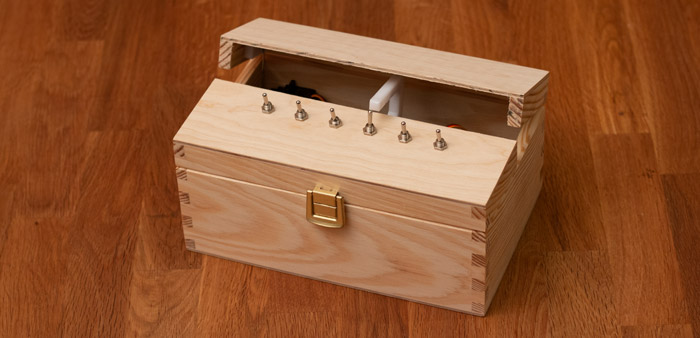
Build a multi-switch useless box with a single moving arm, custom PCB, and 3D-printed mounting — full Arduino code and STL files included.

Build a WiFi-controlled DSLR camera slider for under $100 with 3D-printed parts — full BOM, wiring, and control code included.

This project (with exceptions) is published under the CC Attribution-ShareAlike 4.0 International License.
1: As an Amazon Associate I earn from qualifying purchases.